01
Why exclusive fullscreen breaks the overlay
Exclusive fullscreen hands the entire screen to one game and skips the Windows desktop compositor. That compositor is what every Windows overlay rides on — Discord call popups, Steam overlay, Xbox Game Bar, and Kaption all draw through it. With no compositor in the loop, the overlay either flickers as Windows context-switches between the game and the desktop, or disappears entirely until you alt-tab.
This is a Windows behaviour, not a bug in Kaption. There is no way for a normal desktop app to draw stable pixels over an exclusive-fullscreen swap chain without injecting code into the game process — and we deliberately do not do that, because the whole point of Kaption is staying outside the game.
- Borderless and Windowed mode keep the desktop compositor active.
- Exclusive fullscreen disables it and breaks every overlay, not only Kaption.
- Modern hardware shows no measurable performance loss in borderless mode.
02
How to switch in Genshin Impact
In Genshin Impact, open Settings → Graphics → Display Mode and pick "Borderless Window" or "Windowed". Apply the change and the game keeps running. You can also press Alt+Enter from the game window in most cases — it toggles between fullscreen and the last windowed mode.
03
How to switch in Honkai: Star Rail
Star Rail uses the same convention. Open Settings → Graphics → Display Mode and choose Borderless Window. Alt+Enter also works at any time. If the option is greyed out, leave to the title screen first and try again — some patches lock the mode mid-mission.
04
After you switch, redraw the dialogue region
Borderless mode can shift the dialogue box by a few pixels compared to exclusive fullscreen. If your existing capture region was set up before switching, redraw it once. After that, the region is saved per game and you can keep playing.
05
Why we do not "fix this in the app"
A small number of overlays — Discord, Steam, MSI Afterburner — do work in exclusive fullscreen. They achieve that by injecting a DLL into the game process and hooking its DirectX swap chain. That approach is exactly what HoYoverse anti-cheat systems are built to flag, and Kaption has a strict no-injection policy: no DLL hooks, no game memory reads, no process attach. Borderless mode is the safe path that keeps Kaption outside the game.
Step by step
- 01
Open in-game graphics settings
Pause the game and open the Graphics or Video Settings page.
- 02
Change Display Mode to Borderless or Windowed
Either option works. Borderless looks identical to fullscreen on most setups.
- 03
Apply, then verify with Alt+Enter
Alt+Enter should toggle into fullscreen and back. If it forces exclusive mode, leave the toggle off.
- 04
Restart Kaption translation
Click Stop then Start in Kaption. Subtitles should now sit cleanly above the dialogue with no flicker.
Questions
Will I lose performance in borderless mode?
On Windows 10/11 with a modern GPU the difference is not measurable in normal play. DX12 titles run a "borderless optimization" path that closes most of the gap, and DX11 titles like Genshin Impact and Honkai: Star Rail are already GPU-bound enough that the compositor cost is in the noise.
Why does Discord overlay work in fullscreen but Kaption does not?
Discord and Steam ship a DirectX hook injected into the game process. That is a deliberate engineering choice with real risk — anti-cheat systems flag DLL injection, and Kaption is built on a no-injection policy. We trade exclusive-fullscreen support for a tool that stays outside the game.
Does Alt+Enter always work?
Most of the time yes, but a few patches restrict it to the title screen. If pressing Alt+Enter does nothing, change Display Mode in the in-game settings instead.
I switched to borderless and the subtitle is in the wrong place.
Redraw the dialogue region once. Borderless mode can shift the dialogue box a few pixels, and the region is saved per game so you only do this once after the switch.
More guides
 Setup
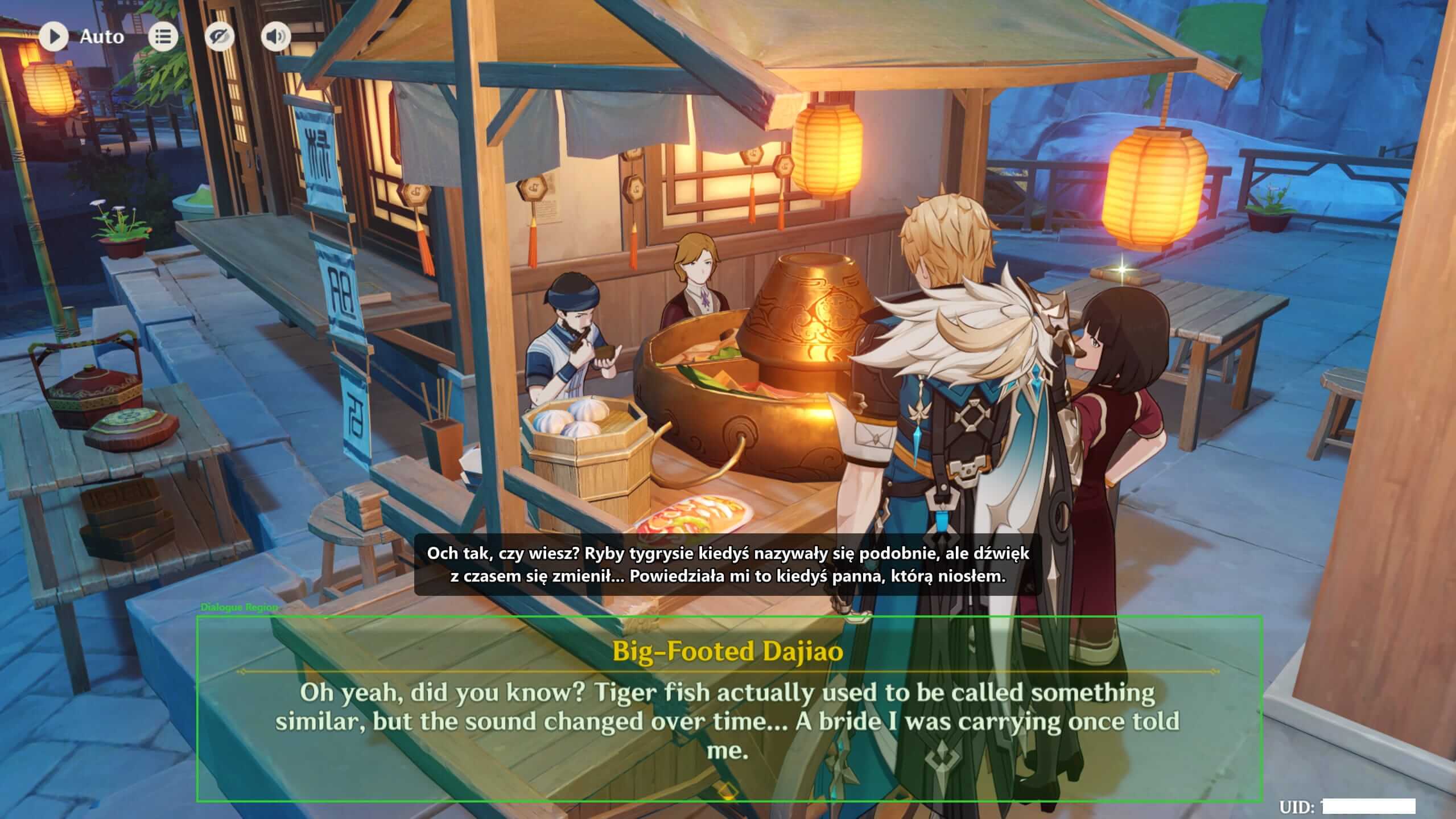
Setup How to set up Kaption from zero
Install Kaption, open your Hoyoverse game, choose the dialogue region, and check that the subtitle overlay stays out of the OCR area.
 Genshin Impact
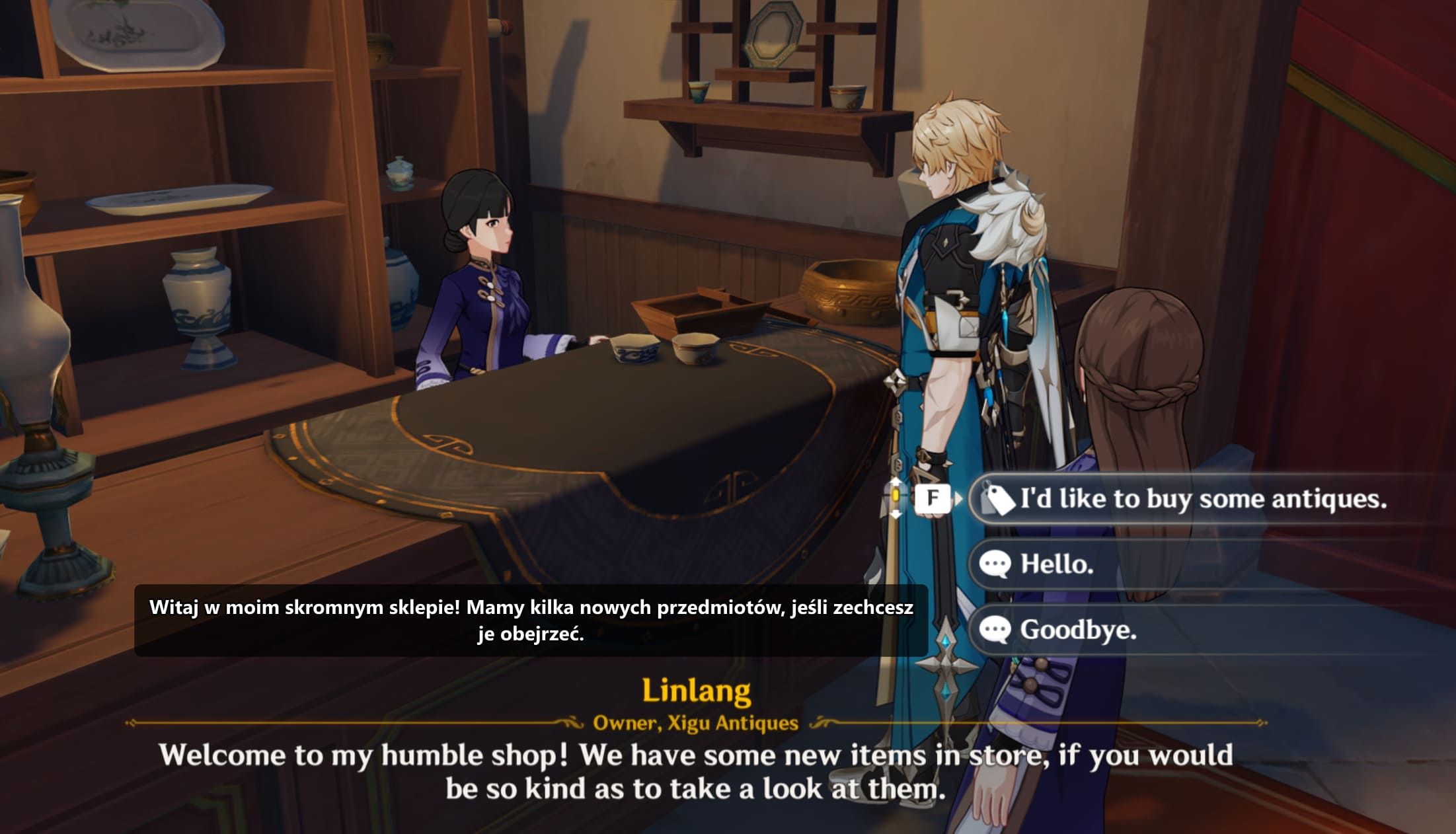
 Genshin Impact Translation Overlay and Subtitles
Use Kaption as a Genshin Impact translation overlay for quests, events, NPC dialogue, choices, and cutscenes. Starting with Polish subtitles, without mods.
 Honkai: Star Rail
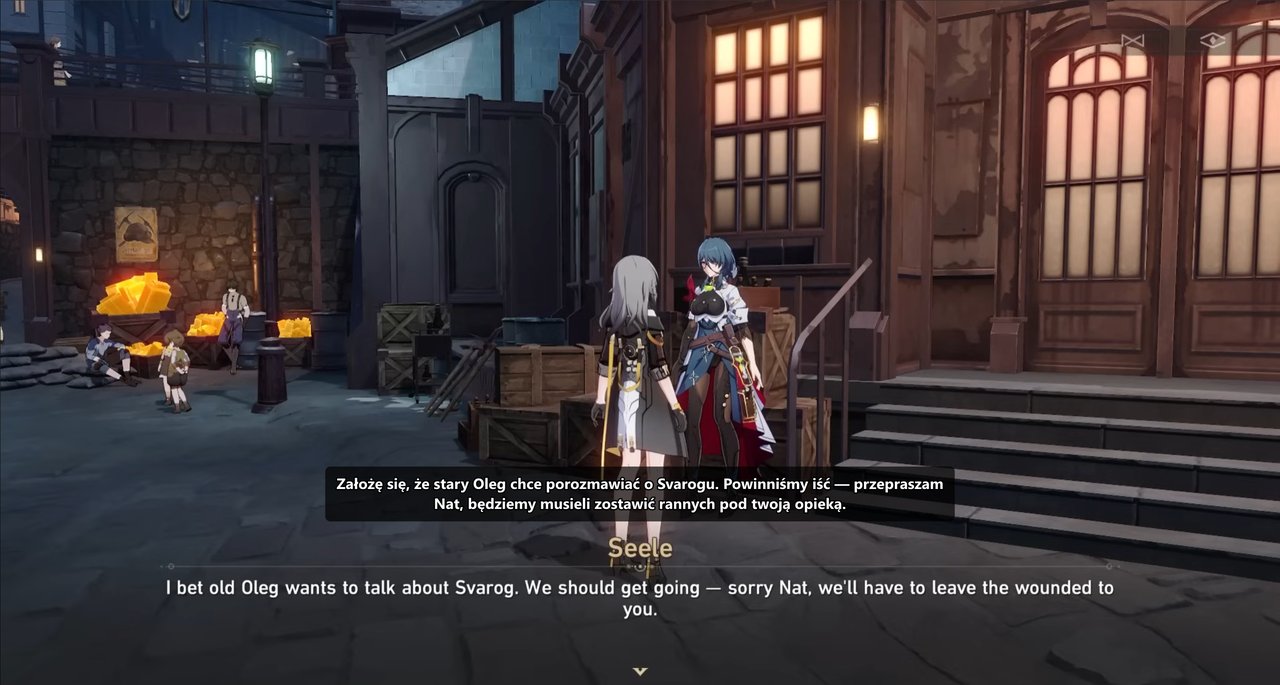
 Honkai: Star Rail Subtitle Translator and Overlay
Use Kaption as a Honkai: Star Rail subtitle translation overlay for story scenes, NPC dialogue, events, and long text-heavy quests. Starting with Polish support.