01
What Kaption needs from you
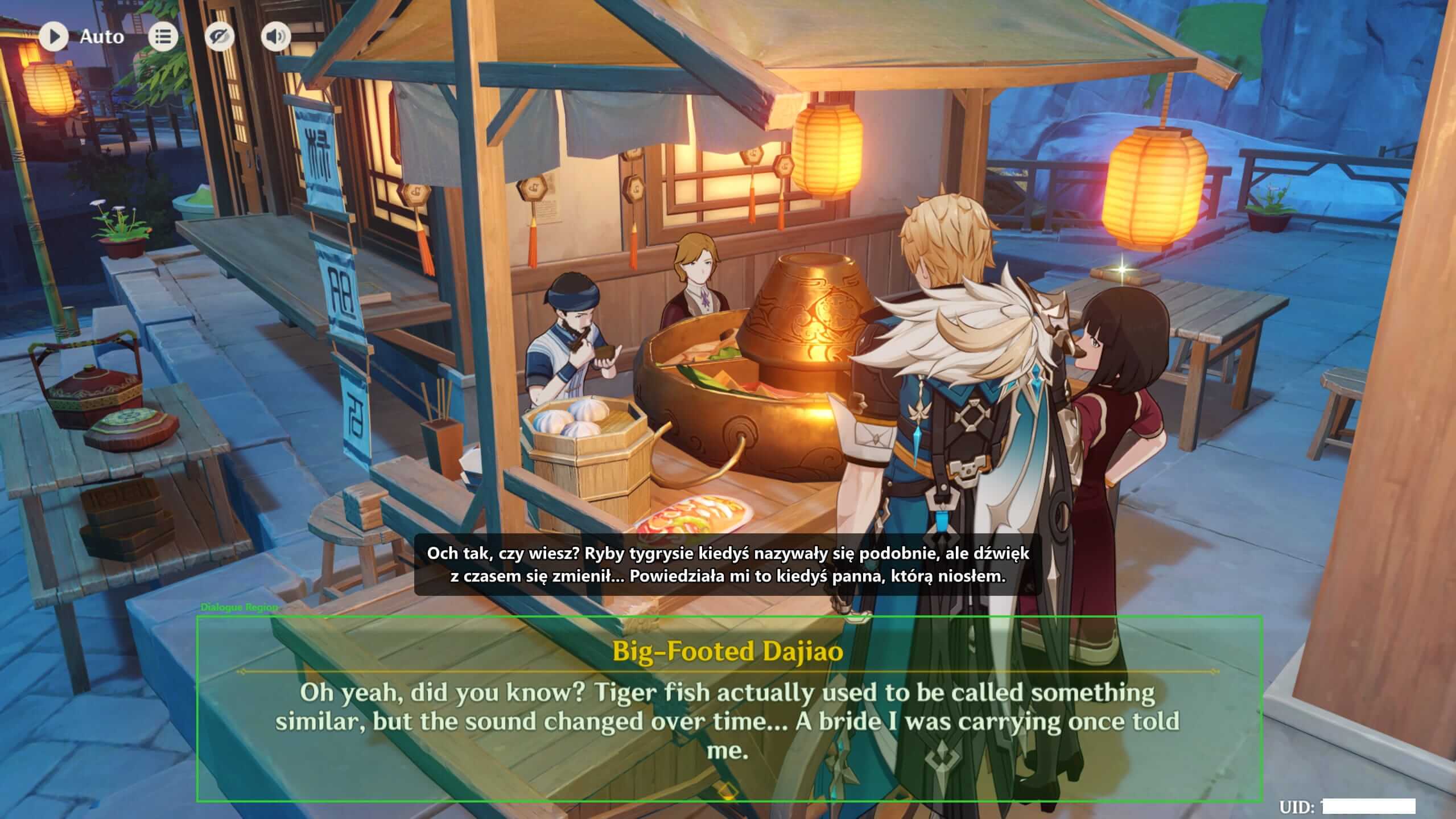
Kaption reads pixels from a chosen part of your screen. That means setup is mostly about drawing a clean rectangle around the game dialogue, not around the whole screen.
A slightly larger region is better than a tight one, but do not include speaker portraits, UI hints, or the translated overlay itself.
- Use a long NPC line when choosing the region.
- Leave a little vertical room for multi-line dialogue.
- Redraw the region after changing resolution or UI scale.
02
Where most setup problems come from
If subtitles flicker, repeat, or look like nonsense, Kaption is usually reading something it should not. The common case is the translated overlay sitting inside the OCR region.
The fix is simple: move the overlay above or below the dialogue area, then redraw the capture region around only the original in-game text.
03
Run the game in Borderless or Windowed mode
Kaption draws the translated subtitle through the normal Windows desktop compositor. Exclusive fullscreen takes that compositor out of the loop, so the overlay flickers or disappears — the same reason Discord, Steam, and Xbox Game Bar overlays struggle in fullscreen. Borderless or Windowed mode keeps the compositor on and looks identical on modern hardware.
In Genshin Impact and Honkai: Star Rail, press Alt+Enter or change Display Mode in the in-game graphics settings before you start translation.
Step by step
- 01
Download and install
Use the public installer from the landing page. The app is self-contained, so normal players do not need to install .NET manually.
- 02
Switch the game to Borderless or Windowed
Press Alt+Enter or change Display Mode in the in-game graphics settings. Exclusive fullscreen makes the overlay flicker.
- 03
Open the game first
Start Genshin Impact or Honkai: Star Rail and enter a dialogue scene before drawing the region.
- 04
Draw the Dialogue Region
Capture the original game dialogue, not the translated overlay. If you want the full screenshot walkthrough, use the dedicated region guide.
- 05
Play one long conversation
Test on a talky NPC or event scene. If a line is clipped, redraw the region a little taller.
Questions
Do I need to configure every time?
No. Kaption remembers regions per game. You usually redraw only after changing resolution, UI scale, monitor layout, or game window mode.
What should I do first when OCR fails?
Show the region, check whether the overlay is inside it, and redraw the box around only the original dialogue text.
Subtitles flicker in fullscreen — what now?
Switch the game to Borderless or Windowed mode (Alt+Enter, or in-game Display Mode setting). Exclusive fullscreen disables the Windows desktop compositor that every overlay relies on, including Discord, Steam, and Kaption.
More guides
 Safety
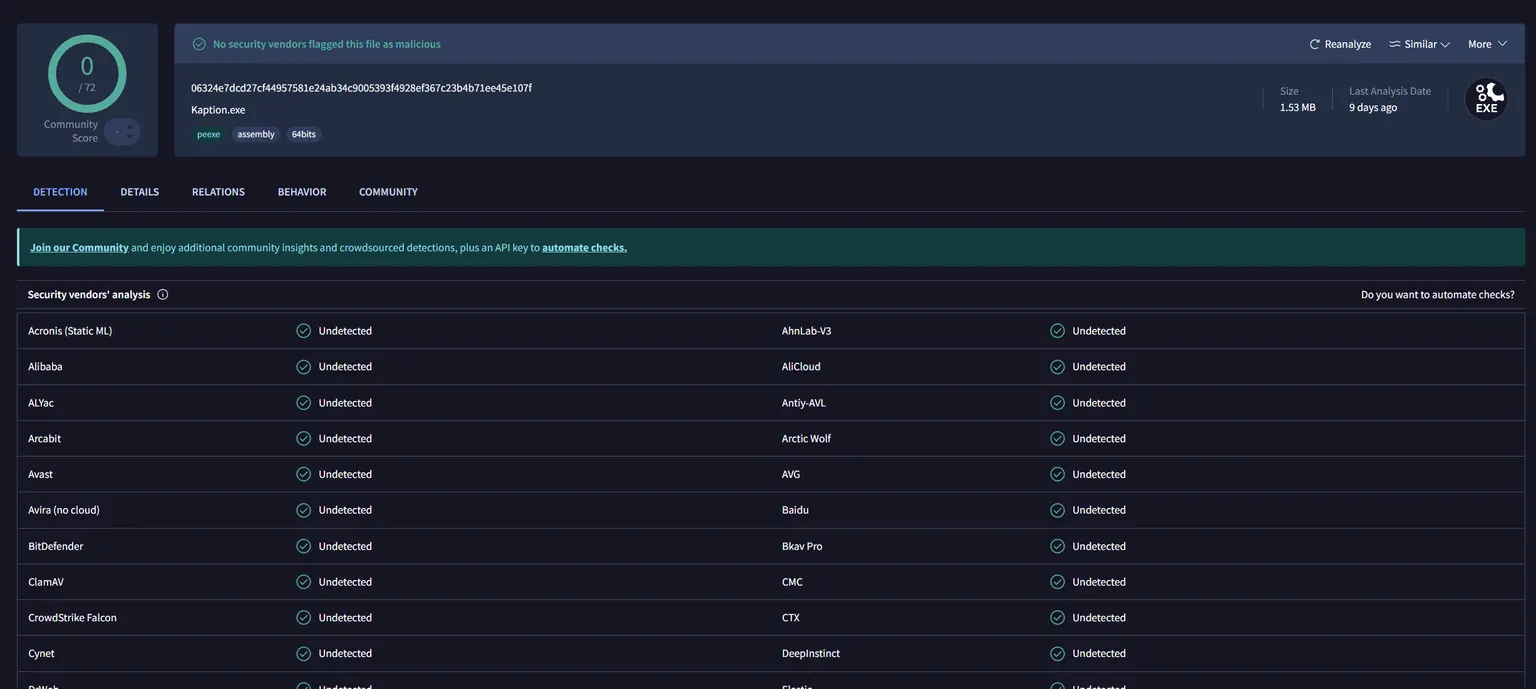
 Is Kaption safe to use with Genshin Impact and Honkai: Star Rail?
Kaption reads screen pixels and shows a subtitle overlay. It does not modify game files, inject code, hook processes, or read game memory. Every release is scanned on VirusTotal.
 Genshin Impact
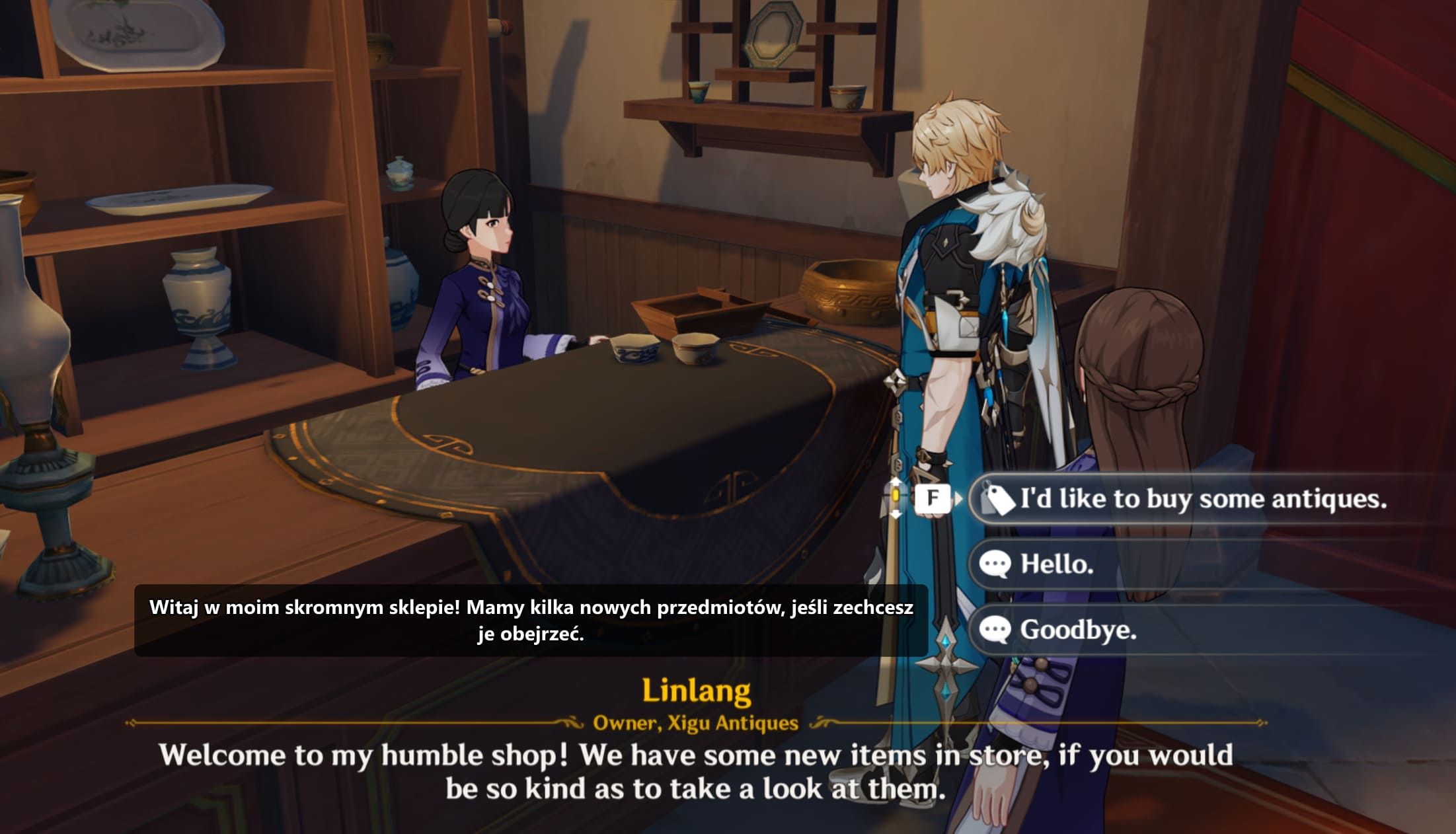
 Genshin Impact Translation Overlay and Subtitles
Use Kaption as a Genshin Impact translation overlay for quests, events, NPC dialogue, choices, and cutscenes. Starting with Polish subtitles, without mods.
 Honkai: Star Rail
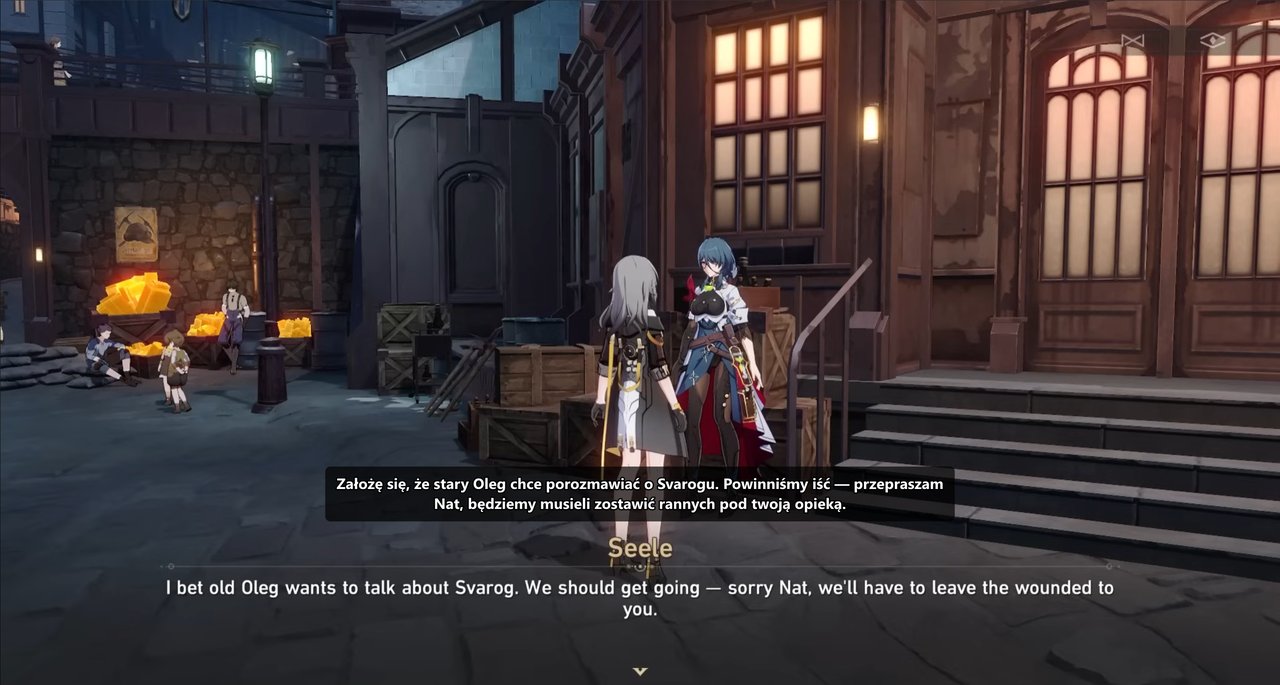
 Honkai: Star Rail Subtitle Translator and Overlay
Use Kaption as a Honkai: Star Rail subtitle translation overlay for story scenes, NPC dialogue, events, and long text-heavy quests. Starting with Polish support.
 Setup
Setup Run the game in Borderless or Windowed mode for Kaption
Kaption needs Borderless or Windowed mode to draw subtitles over the game. Exclusive fullscreen makes the overlay flicker. Press Alt+Enter to switch.