Draw a box, read it in Polish
Ctrl+Q works anywhere on the screen, and it has nothing to do with your dialogue region. Draw a box around a skill description, an item, a menu entry or a quest title, and the translation appears next to the box.
The window doesn't pull you out of the game, so you can keep clicking through menus while it's open. Lines Kaption can't find in the translation stay in English and turn grey, so you can always tell what's translated and what isn't.
- Skill, talent and constellation descriptions
- Items, weapons and gear
- Menus, quest titles and event panels
- Anything that isn't a line of dialogue
Choose when the window closes
On the Subtitle style page, find the Quick translate popup card and pick one of three options. The default, "Automatically, based on text length", keeps a short line up for a few seconds and a long skill description for up to a minute and a half. "After a set time" closes the window after however many seconds you choose. "Only when I close it" leaves it on screen until you click ×.
The same card has a slider for the text size.
- Automatically: 4 to 90 seconds, depending on the text
- After a set time: anything from 2 to 120 seconds
- Only when I close it: stays until you click ×
Pause it, pin it, check the original
Put the mouse over the window and the countdown stops. Move away and it carries on. The pin keeps the window open until you close it, which helps when you compare two skills.
The EN button flips to the original English text and back, which is useful when a number or a name looks off. The copy button puts the translation on your clipboard. Using either one also pins the window, so it won't vanish halfway through reading. Click the text or × when you're done.
Ctrl+Shift+Q: same spot, no drawing
Ctrl+Shift+Q reads the area you picked last time again, without a new box. It was made for skill screens: click the next skill in the game, press Ctrl+Shift+Q, and its description is already there in Polish.
If that area is no longer on screen, for example after you switch monitors or change the resolution, Kaption asks you to draw a new one.
Skill screens get a character overview
When you translate a skill screen, Kaption works out whose skills they are. A strip shows up under the translation with a portrait, the character's name and the skill on screen, for example Fluttering Hasode (E), marked recognised. That skill's title in the translation gets its type badge and a from the character card tag.
Open the card expands the full character overview in the same window, right at that skill. Back to the translation takes you back to the text. It works from the keyboard too: Tab and Enter open the card, Esc closes it, and a second Esc closes the window.
The overview has all of the character's skills plus a recommended build: gear sets, main stats, substats and, where available, weapons and teammates. Character and skill names stay in English, as in the game, with the skill type as a small chip after the name. The skills come straight from the game files.
Look up any character on the Characters page
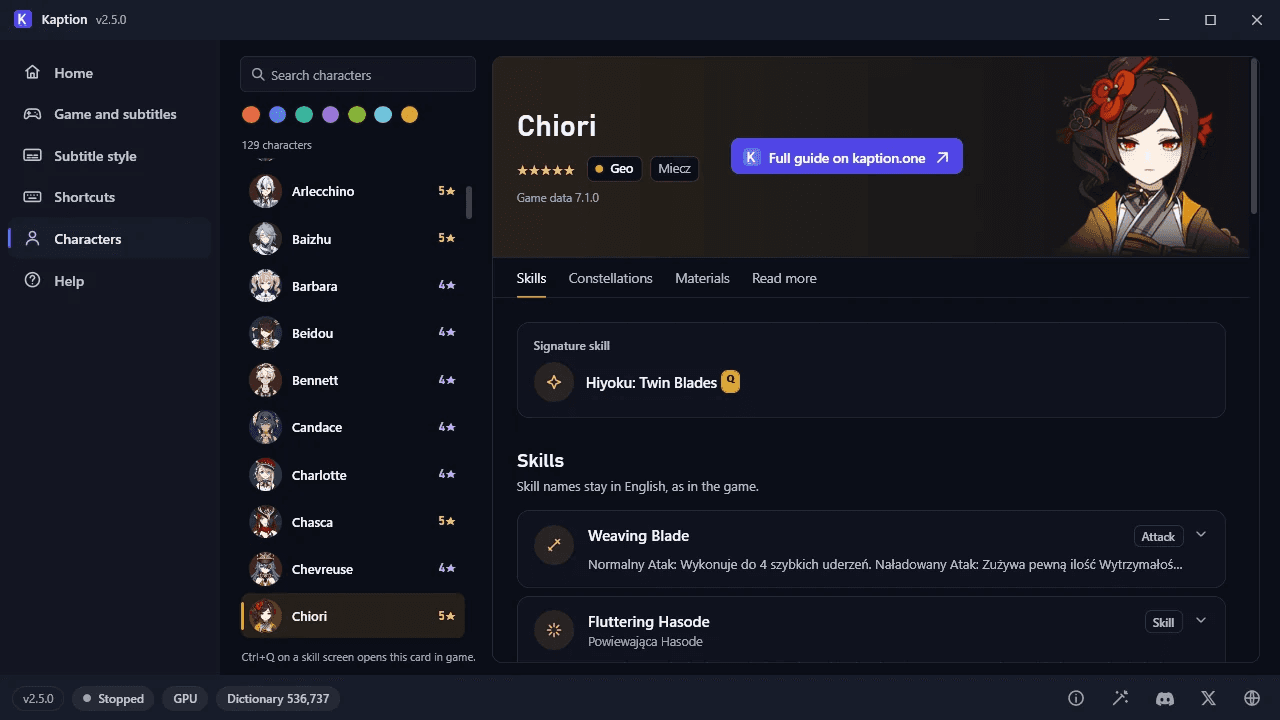
You don't need the game running to check someone. Characters, in the menu on the left, lists every character with a search box and an element filter, next to the same overview as the popup.
The same overviews are on this site too, one page per character. Full guide on kaption.one, at the top of the card, opens that character's page, and all the links are below.
Character pages on kaption.one
The character overview also lives on this site, one page per character, in English and in Polish.
Kaption
Genshin Impact characters
- Use for
- Checking a skill, a constellation or the recommended artifacts before you play.
- Trust level
- Official text from the game files.
- Notes
- In English and in Polish, worded the same way as in the app.
Kaption
Honkai: Star Rail characters
- Use for
- Skills, eidolons, and the relics and light cones the game suggests.
- Trust level
- Official text from the game files.
- Notes
- In English and in Polish, worded the same way as in the app.
Kaption
Zenless Zone Zero characters
- Use for
- Skills, Mindscape Cinema, and the discs and W-Engines the game suggests.
- Trust level
- Official text from the game files.
- Notes
- Descriptions are in English for now.
Step by step
-
Open the screen you want to read
A skill page, an item, a menu or an event panel. Anything with text on it.
-
Press Ctrl+Q and draw a box
Drag around the text and leave a little room at the edges so no letters get cut off.
-
Read the translation next to the box
Hover over it to stop the countdown, or pin it to keep it open.
-
Next skill? Press Ctrl+Shift+Q
Kaption reads the same spot again. No drawing needed.
-
Set how long it stays
Subtitle style, Quick translate popup card: automatic, a set time, or only when you close it.
Questions
Do I need the dialogue region for this?
No. Quick translate draws its own box and works even with subtitles turned off. Kaption just has to be running with the translation loaded.
Why is some of the text grey?
Those are lines Kaption couldn't find in the translation, so it shows them in English instead of guessing. If nothing matches at all, you get the original text with a short note.
Why do I sometimes see ? instead of a number?
Some skill descriptions have numbers the game fills in. When Kaption can't be sure which number on screen belongs where, it shows ? rather than risk a wrong value. The EN button shows you the original.
Can I change the shortcuts?
Yes. On the Shortcuts page, click a shortcut and press the keys you want. Ctrl+Q and Ctrl+Shift+Q move the same way.
Does it work in Zenless Zone Zero?
Yes, but the Polish translation for Zenless covers dialogue for now. Skill and menu text, and the character overview, stay in English until that changes.